> ## Documentation Index
> Fetch the complete documentation index at: https://hoopdev-docs-changelog-1-43-2.mintlify.site/llms.txt
> Use this file to discover all available pages before exploring further.
# Creating Connections
> Learn how to set up secure connections to your resources through the Hoop.dev web interface
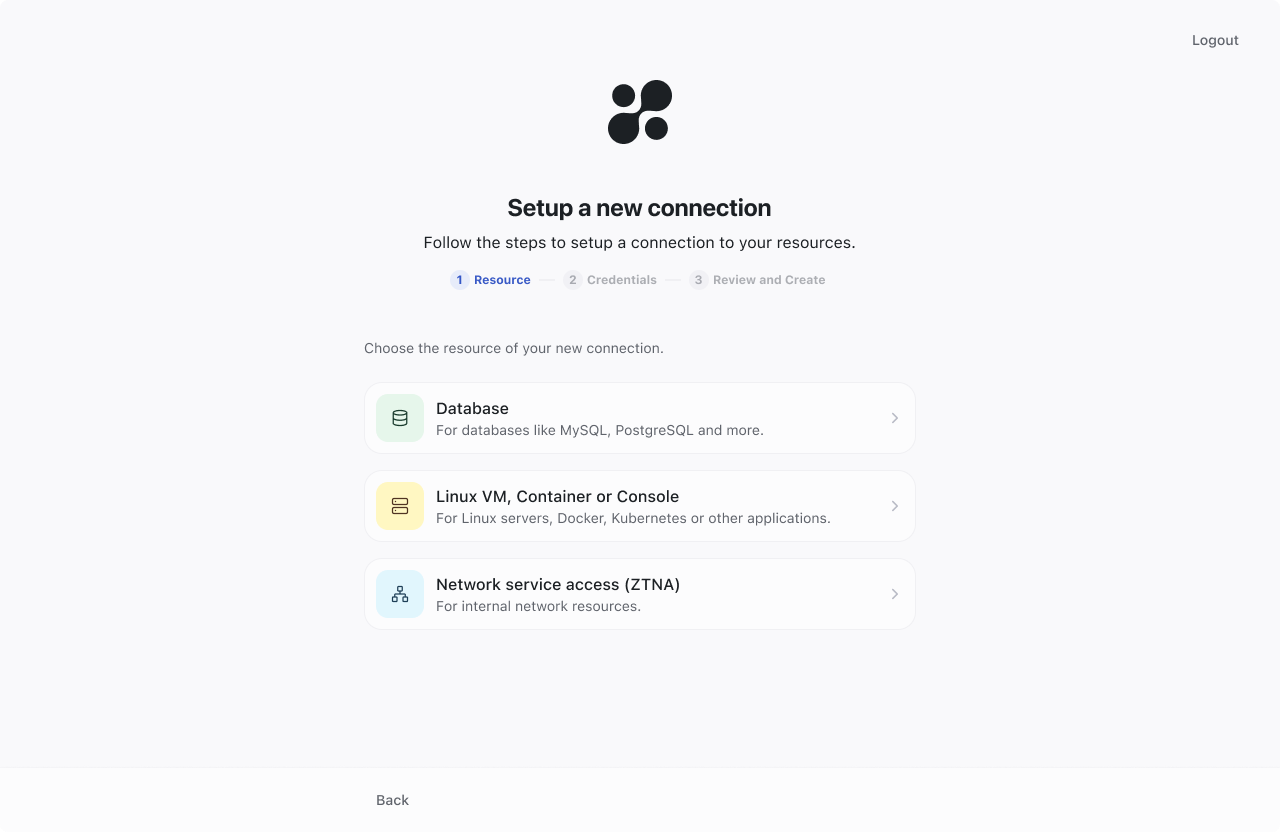 Hoop.dev provides an intuitive web interface to create and manage secure connections to your resources. The connection setup process is divided into three simple steps:
1. Resource Selection
2. Credentials Configuration
3. Review and Create
## Resource Selection
When creating a new connection, you'll first choose from three main resource types:
For databases like MySQL, PostgreSQL, MongoDB and more.
For Linux servers, Docker, Kubernetes or other applications.
For internal network resources.
## Credentials Configuration
Hoop.dev provides an intuitive web interface to create and manage secure connections to your resources. The connection setup process is divided into three simple steps:
1. Resource Selection
2. Credentials Configuration
3. Review and Create
## Resource Selection
When creating a new connection, you'll first choose from three main resource types:
For databases like MySQL, PostgreSQL, MongoDB and more.
For Linux servers, Docker, Kubernetes or other applications.
For internal network resources.
## Credentials Configuration
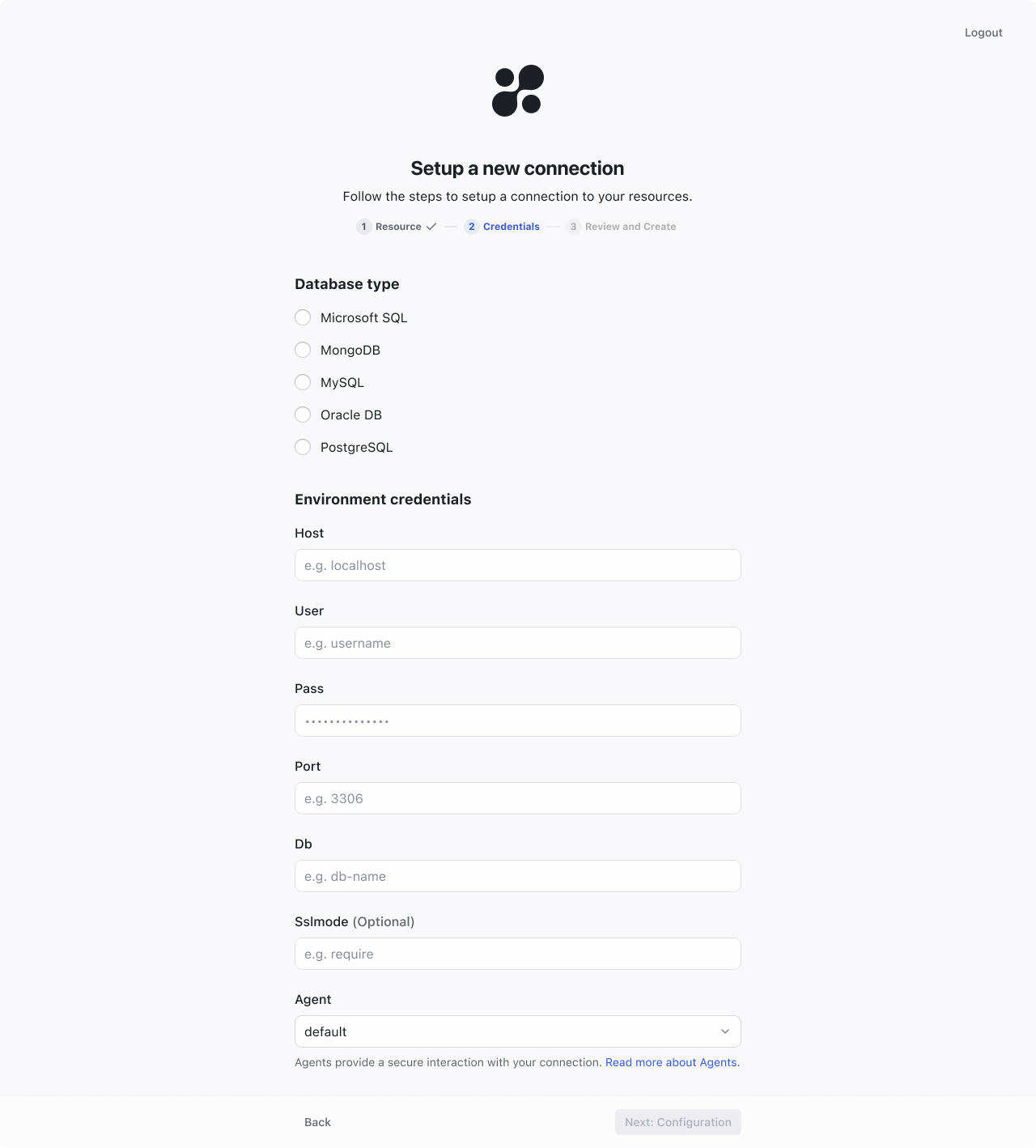 After selecting your resource type, you'll need to provide the necessary credentials and connection details. The required fields vary by resource type:
First, select your database type:
* Microsoft SQL
* MongoDB
* MySQL
* Oracle DB
* PostgreSQL
Then provide the following credentials:
* Host address (e.g. localhost)
* Port number (e.g. 3306)
* Username
* Password
* Database name
* SSL mode (Optional)
* Agent selection
Choose your connection subtype:
### Linux VM or Container
* Access and manage with terminal commands
### Secure Shell Protocol (SSH)
* Private Key (paste your file content)
* SSH URI (ssh://\[uri])
* Agent selection
### Console
Select your application type:
* Ruby on Rails
* Python
* Node.js
* Clojure
Additional settings:
* Operating system (MacOS/Linux)
* Environment variables (Key-Value pairs)
* Configuration files
* Name (e.g. kub\_config)
* Content
* Additional command (optional)
* Agent selection
First, select your network access type:
* TCP
* HTTP (Coming Soon)
Then provide:
* Host address (e.g. localhost)
* Port number
* Agent selection
Agents provide secure interaction with your connection. Learn more about [Agents](/learn/concepts/agent).
## Review and Create
After selecting your resource type, you'll need to provide the necessary credentials and connection details. The required fields vary by resource type:
First, select your database type:
* Microsoft SQL
* MongoDB
* MySQL
* Oracle DB
* PostgreSQL
Then provide the following credentials:
* Host address (e.g. localhost)
* Port number (e.g. 3306)
* Username
* Password
* Database name
* SSL mode (Optional)
* Agent selection
Choose your connection subtype:
### Linux VM or Container
* Access and manage with terminal commands
### Secure Shell Protocol (SSH)
* Private Key (paste your file content)
* SSH URI (ssh://\[uri])
* Agent selection
### Console
Select your application type:
* Ruby on Rails
* Python
* Node.js
* Clojure
Additional settings:
* Operating system (MacOS/Linux)
* Environment variables (Key-Value pairs)
* Configuration files
* Name (e.g. kub\_config)
* Content
* Additional command (optional)
* Agent selection
First, select your network access type:
* TCP
* HTTP (Coming Soon)
Then provide:
* Host address (e.g. localhost)
* Port number
* Agent selection
Agents provide secure interaction with your connection. Learn more about [Agents](/learn/concepts/agent).
## Review and Create
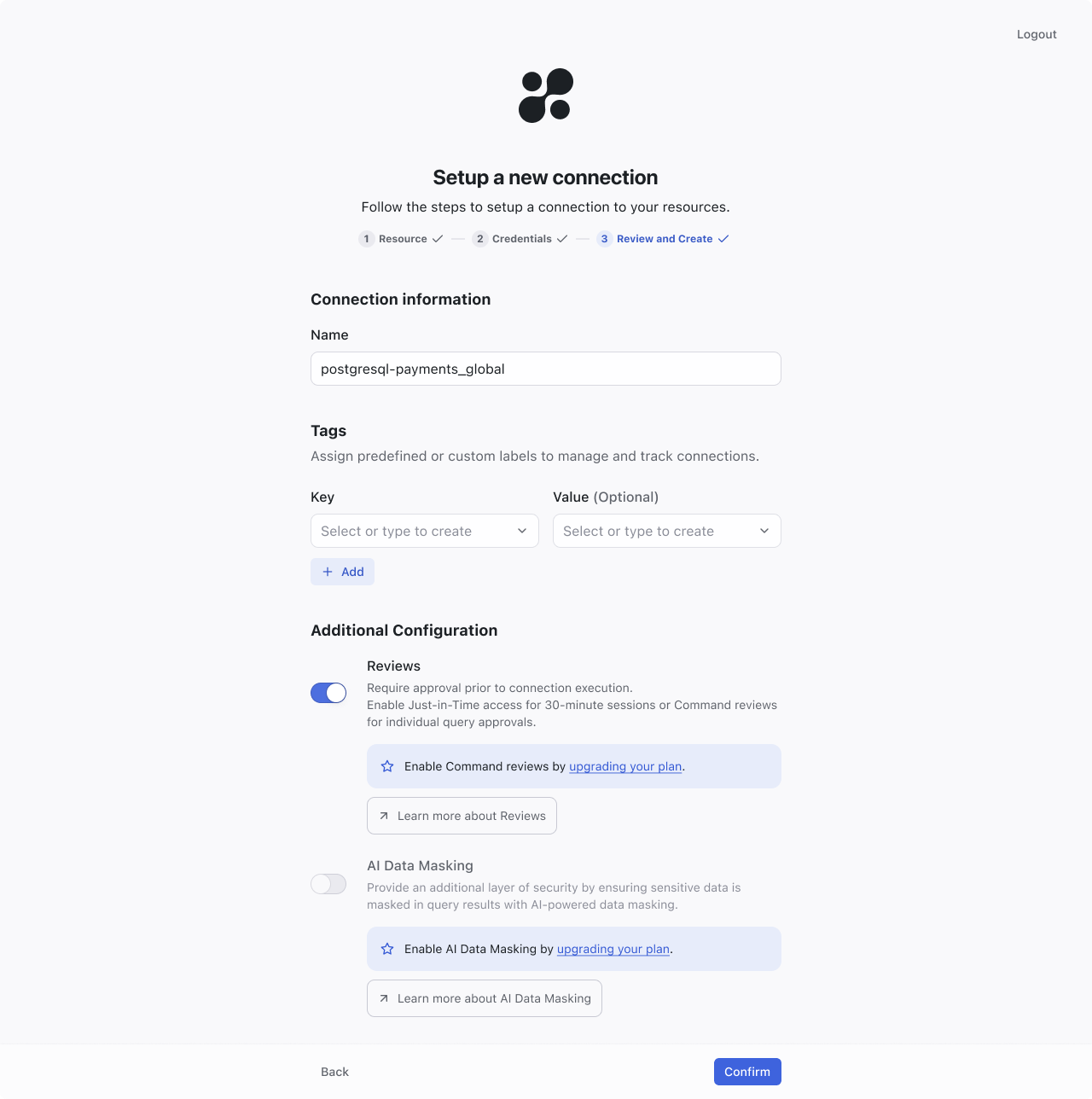 In the final step, you'll:
1. Set a connection name
2. Add optional tags for organization
3. Configure additional security features:
* Reviews - Require approval prior to connection execution
* AI Data Masking - Automatically mask sensitive data in query results
## Security Best Practices
Use descriptive names that indicate the purpose and environment of the connection.
Utilize tags to categorize and manage connections effectively.
Set up reviews for sensitive connections to maintain security.
Enable AI Data Masking when handling sensitive information.
## Next Steps
Learn how to control who can access your connections
Track and audit connection usage
In the final step, you'll:
1. Set a connection name
2. Add optional tags for organization
3. Configure additional security features:
* Reviews - Require approval prior to connection execution
* AI Data Masking - Automatically mask sensitive data in query results
## Security Best Practices
Use descriptive names that indicate the purpose and environment of the connection.
Utilize tags to categorize and manage connections effectively.
Set up reviews for sensitive connections to maintain security.
Enable AI Data Masking when handling sensitive information.
## Next Steps
Learn how to control who can access your connections
Track and audit connection usage